
27 Aug 2026
How to Organize Your Extension Board, Chargers & Cables Under a Desk
Learn how to organize your extension board, chargers, and cables under a desk with simple cable management tips. Discover practical ways to reduce cable clutter, keep wires off the floor, and create a cleaner gaming desk, office desk, or home office using an under desk cable management tray.
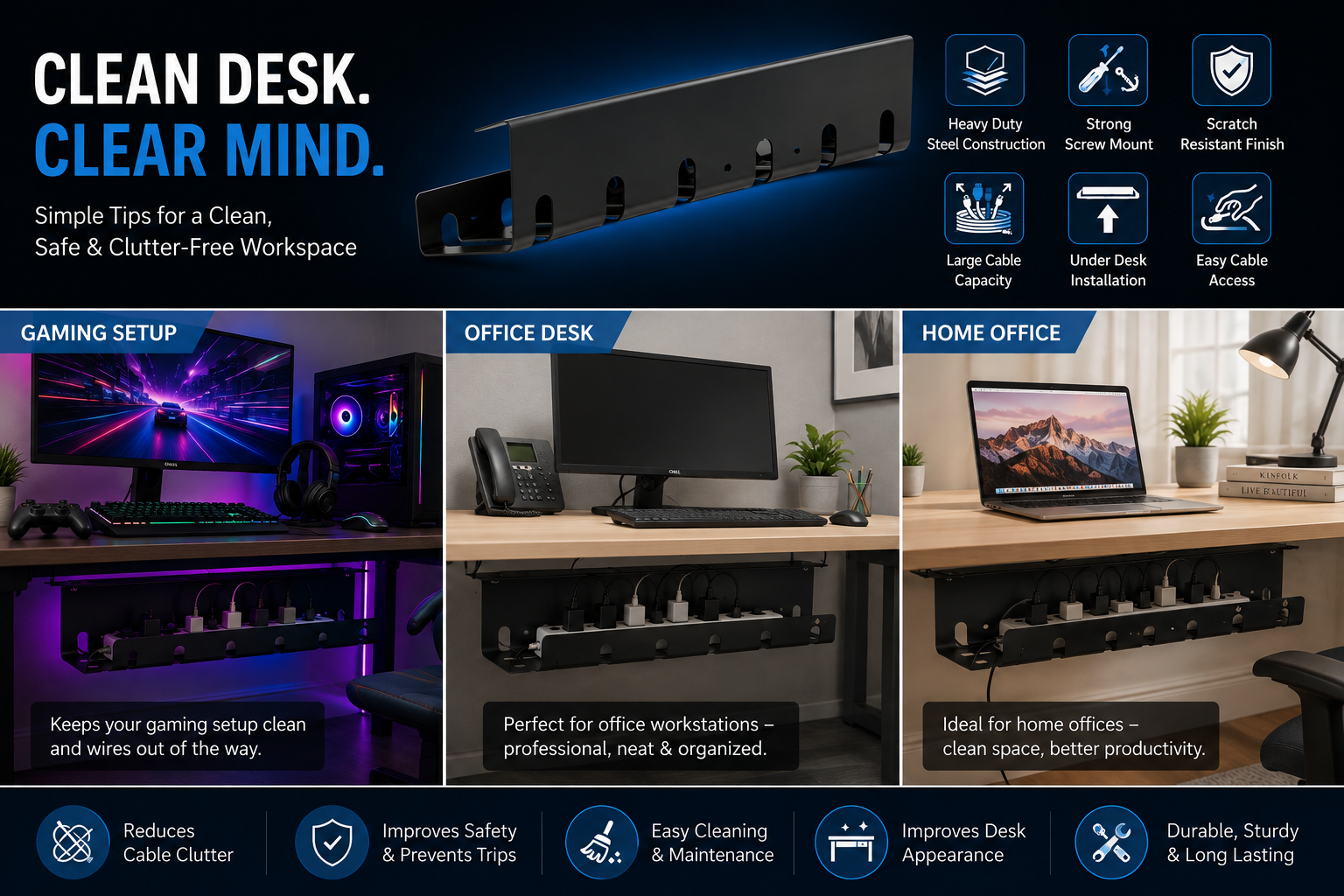
A messy desk can make even a simple workspace feel crowded and uncomfortable. Extension boards, laptop chargers, phone charging cables, USB wires, power adapters, and other electronic cords often end up tangled together under the desk. Apart from looking untidy, loose cables can make cleaning difficult and may create a tripping or pulling hazard.
The good news is that you do not need a complicated setup to organize your cables. With a few simple cable management ideas and the right under-desk cable management tray, you can turn the space underneath your desk into a cleaner and more organized area.
Whether you work from home, manage a gaming setup, study at a desk, or have a busy office workstation, proper desk cable management can make a noticeable difference.
Why Is Cable Organization Under a Desk Important?
Before looking at different ways to organize cables, it helps to understand why cable management for desks is useful.
A typical workstation may have a laptop or desktop computer, monitor, speakers, printer, phone charger, Wi-Fi equipment, extension board, and other electronic devices. Each device may have one or more cables. Without a proper system, these cables can quickly become difficult to identify.
Good cable organization can help you:
-
Keep your workspace looking neat and professional
-
Prevent cables from becoming tangled
-
Make cleaning under the desk easier
-
Keep extension boards and chargers off the floor
-
Find the correct cable more quickly
-
Reduce unnecessary cable clutter
-
Create a more comfortable home office setup
-
Make it easier to add or remove devices later
For people searching for how to hide cables under a desk, the solution is often simpler than expected. Instead of allowing everything to sit on the floor, you can route and store your cables underneath the desk.
Step 1: Identify All the Cables
The first step in organizing your extension board, chargers, and cables is knowing exactly what you have. Remove everything from underneath the desk and separate the cables according to their purpose. You may find:
-
Laptop charging cable
-
Monitor power cable
-
Phone chargers
-
USB cables
-
HDMI cables
-
Printer cables
-
Speaker cables
-
Extension board
-
Power adapters
-
Keyboard and mouse cables
-
Network or Ethernet cables
Once everything is separated, disconnect cables that you no longer use. Keeping unused wires connected or mixed with active cables creates unnecessary clutter. This is one of the easiest cable management tips for home office setups.
Step 2: Place the Extension Board Under the Desk
An extension board is one of the biggest sources of cable clutter. When it is left on the floor, several cables usually spread in different directions.
An under-desk cable management tray provides a convenient place to hold an extension board, adapters, and excess cable length. Instead of having the power strip lying on the floor, it can be positioned beneath the tabletop where the cables are easier to route.
The JBM MART Metal Under Desk Cable Management Tray is designed for this type of setup. Its metal construction provides a sturdy place to organize an extension board and cables beneath a desk. The tray can help keep wires together while freeing up floor space.
Rather than making the product the focus of your workspace, the idea is to use it as part of an overall under-desk cable management system.
Step 3: Keep Chargers in One Area
Chargers can quickly make a workstation messy because each adapter may have a different cable length. Instead of allowing chargers to spread across the floor, keep the adapters together in one organized area underneath the desk.
If several people use the same workstation, you can also identify chargers with small labels. For example:
-
Laptop
-
Monitor
-
Phone
-
Speaker
-
Tablet
This simple approach makes it easier to identify a charger without having to follow every cable back to the device.
Step 4: Separate Power Cables From Data Cables
Power cables, USB cables, HDMI cables, Ethernet cables, and audio cables do not necessarily need to follow the same route.
Try grouping cables according to their function. For example, keep monitor and laptop power cables together while routing HDMI and USB cables separately. This makes your setup easier to understand and can make troubleshooting much easier when a device stops working.
Step 5: Route Cables Toward the Back of the Desk
Once the extension board and adapters are organized underneath the desk, route the cables toward the back. Avoid allowing long cables to hang directly in front of your legs. Instead, use the shortest practical route from the device to the cable management area.
For example, a monitor positioned at the back of the desk should have its cable routed toward the rear rather than hanging across the front edge of the desk.
This is an important part of how to organize cables under a desk because the goal is not simply to hide the wires. You also want to create a clean and logical cable route.
Step 6: Use Cable Ties or Velcro Straps
Once the cables are in the correct position, bundle them using reusable cable ties or Velcro straps. Avoid making one extremely large bundle containing every cable. Instead, create smaller groups.
For example:
Group 1: Laptop and monitor power cables
Group 2: USB and charging cables
Group 3: HDMI and display cables
Group 4: Network and other connectivity cables
Reusable straps are particularly convenient because you can open them whenever you need to replace or add a cable.
Step 7: Leave Some Extra Cable Length
One common mistake in desk wire management is pulling every cable too tightly.
Cables should have enough slack to allow you to move your monitor, laptop, or other equipment without putting stress on the connectors. At the same time, avoid leaving large loops of excess cable hanging underneath the desk.
A good rule is to keep enough cable length for normal movement while securing the remaining slack neatly.
Step 8: Label Important Cables
If your desk has several similar cables, labeling can save a surprising amount of time. You can use small labels such as:
-
Monitor Power
-
Laptop Charger
-
Printer
-
Speaker
-
HDMI
-
Ethernet
-
Phone Charger
This is especially helpful in offices or shared workspaces where multiple devices are connected to the same extension board.
Step 9: Keep the Floor Clear
One of the main goals of cable management under the desk is to reduce the number of cables touching the floor.
Cables lying underneath a desk collect dust and can get caught around chair wheels or feet. They can also make vacuuming and mopping more difficult. Moving the extension board and excess cables into an under-desk tray can create a cleaner floor area and make everyday cleaning easier.
How JBM MART Cable Management Tray Fits Into a Clean Desk Setup
A cable management tray is particularly useful when your extension board and several chargers need a dedicated place.
The JBM MART Metal Under Desk Cable Management Tray can be mounted underneath a desk to create a designated space for an extension board, power adapters, and cables. It is made for practical everyday desk organization and can be useful for home offices, workstations, study tables, and gaming setups.
The tray includes mounting screws and a manual, allowing users to install it underneath a suitable desk surface. The key benefit is not simply hiding cables. A well-planned setup keeps the power source and cables positioned together, making the entire workstation easier to manage.
Cable Management Ideas for a Home Office
Start by identifying the devices you use every day. If you only have a laptop and phone charger, you may need a simple setup. If you have two monitors, speakers, a printer, and other accessories, you may need a more structured system.
A practical home office setup can include:
-
An under-desk cable management tray
-
Extension board mounted underneath the desk
-
Chargers grouped together
-
Cables separated by type
-
Velcro straps for bundling
-
Labels for frequently used cables
-
Excess cable length secured underneath the desk
This creates a cleaner workspace without requiring major changes to the furniture.
Cable Management for Gaming Desks
Gaming desks often have even more cables because of monitors, gaming PCs, consoles, speakers, controllers, headphones, and charging accessories.
For a gaming setup, start by placing the extension board in an under-desk tray. Route monitor and PC power cables toward the rear of the desk, then organize USB and display cables separately.
Keep frequently disconnected accessories slightly more accessible so you do not have to undo the entire cable bundle every time you connect a device. Good gaming desk cable management can make the setup look cleaner while also making it easier to upgrade or replace equipment.
Common Cable Management Mistakes to Avoid
Even after organizing your cables, a few mistakes can bring the clutter back.
1. Using Extremely Long Cables
Long cables create unnecessary loops. Whenever possible, choose a cable length suitable for your desk.
2. Mixing Every Cable Together
A single bundle containing power, USB, HDMI, Ethernet, and charging cables can become difficult to troubleshoot.
3. Leaving the Extension Board on the Floor
This often creates a central point of cable clutter. An under-desk tray can provide a more organized location.
4. Pulling Cables Too Tight
Tight cables can put unnecessary pressure on connectors and make equipment movement difficult.
5. Forgetting Future Devices
Leave some room in your cable management system for future additions. You may eventually add another monitor, charger, speaker, or other accessory.
How to Organize Cables Under a Desk Without Making It Complicated
You do not have to reorganize your entire workstation in one day.
Start with the biggest source of clutter: the extension board. Place it in a suitable under-desk cable tray. Then organize the chargers and route individual cables toward the devices. After that, secure loose cables with reusable straps and label the cables that look similar.
The most effective desk cable organizer setup is one that is easy to maintain. If accessing a charger requires removing five bundles of cables, the system will eventually become messy again.
Keep frequently used connections accessible and secure only the cables that need to stay in place.
Frequently Asked Questions
What is the best way to organize cables under a desk?
The best approach is to place the extension board and power adapters in an under-desk cable management tray, route cables toward the back of the desk, group similar cables together, and secure excess length with reusable straps.
How do I hide an extension board under my desk?
You can mount an under-desk cable management tray beneath the tabletop and place the extension board inside or on the tray, depending on its size and design. This keeps the power strip away from the floor and helps organize connected cables.
How do I stop cables from getting tangled under my desk?
Separate cables by type, avoid unnecessary cable length, route them in the same direction, and use Velcro straps or cable ties to keep individual groups together.
Is an under-desk cable tray useful?
Yes. An under-desk cable tray can provide a dedicated place for extension boards, power adapters, and excess cables. It can also help keep the floor underneath the desk cleaner.
How do I organize a messy computer desk?
Start by disconnecting unused cables. Then group the remaining cables according to their purpose, place the extension board in an accessible location, route cables toward the back of the desk, and secure excess cable length.
How can I manage cables in a home office?
For a home office, use an under-desk cable organizer or tray, bundle similar cables, label important connections, and keep unnecessary cables off the floor. This creates a cleaner and easier-to-maintain workstation.
Can a cable management tray hold an extension board?
Many cable management trays are designed to accommodate extension boards and power adapters, but you should always check the tray's dimensions and weight capacity before installation.
How do I manage cables for a dual-monitor setup?
Place the extension board and power adapters in an under-desk tray. Route both monitor power cables toward the tray and keep HDMI, DisplayPort, USB, or other connection cables grouped separately.
Final Thoughts
Organizing your extension board, chargers, and cables under a desk does not have to be difficult. The key is to create a dedicated location for the power strip, keep cables grouped logically, and prevent unnecessary wires from spreading across the floor.
An under-desk cable management tray, such as the JBM MART metal cable management tray, can be a practical part of this setup by providing a dedicated space underneath the desk for an extension board, chargers, and cables.
Once everything is organized, maintaining the setup becomes much easier. A few minutes of cable organization can turn a cluttered workstation into a cleaner, more comfortable, and more professional-looking space.